
Infinite Painter
Infinite Studio LLCArt & Design
4.510.60K Reviews
- Version
- 7.2.11
- Installs
- 10.00M
- Age Rating
- Everyone
Screenshots
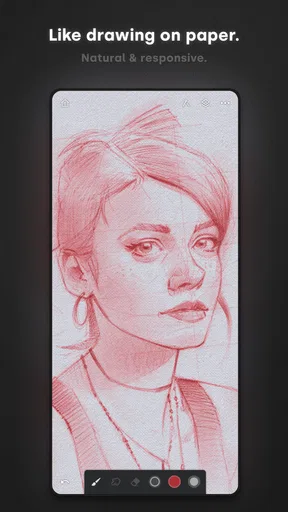
Our Review of Infinite Painter
 Analysis by Appyee
When I choose a drawing app, I care about more than how many brushes it offers. I want to know whether its controls feel understandable, whether I can shape a workspace around the way I draw, and whether I can make sensible choices when a project includes personal reference material. Infinite Painter is a mobile art and design app from Infinite Studio LLC, and its mix of hands-on tools and adjustable panels gives me plenty to explore. I’d approach it as a capable creative workspace, while taking time to learn its layout rather than expecting every part to feel obvious on the first day.
Trust starts with what you can see
A drawing app can become part of a personal routine: I might sketch a character, develop a private study, or bring in an image as a visual guide. That makes clear, visible choices more useful than broad assurances. I look at whether the interface lets me decide how I work and whether I can keep a project organized on my own terms. Here, the adjustable panels and layer tools give me practical control over the working surface, though those are creative controls, not a substitute for checking device-level permissions or the app’s current privacy information.
I would not treat a polished canvas or a large toolset as proof of any particular data practice. Before granting access to images or other device resources, I’d pause at the operating system’s permission prompt and consider whether the request makes sense for what I’m trying to do. If I’m only making a blank-canvas sketch, I can keep the task simple; if I want to use a reference image, I can make that choice deliberately. That small habit is useful in any art app, and especially when my source material is personal.
Visible controls for a more personal workspace
The clearest form of agency I found in the app’s creative workflow is the ability to move, add, or remove panels. I can put the controls I use most within easy reach and clear away distractions when I want a larger view of the artwork. This is more than cosmetic: a beginner can start with a less crowded arrangement, while someone who paints regularly can bring frequently used tools closer to the canvas. I’d change the layout gradually, so I still know where important controls have gone.
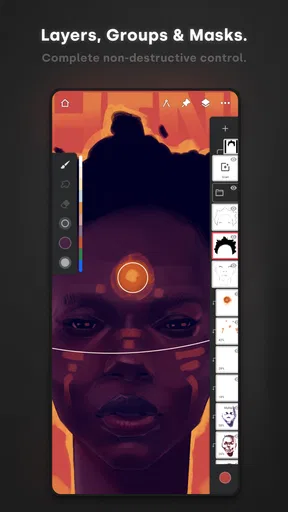
Layers add another kind of practical control. Keeping a rough sketch separate from later paint can make revisions less intimidating, and merging only when I’m satisfied helps preserve room to experiment. I’d also save a clean working version before making a change that is difficult to undo, particularly on a project I care about. These are ordinary habits, but they matter when a phone or tablet is doing the job of a compact art desk.
When reference images enter the process
The reference-image feature is useful when I want to study a pose, color relationship, or object without repeatedly leaving the canvas. I would choose an image I have a legitimate reason to use, keep it as a guide rather than tracing by default, and remove it from the workflow when it is no longer helpful. For a personal sketch, a photo of a household object can be a straightforward starting point; for commissioned or shared work, I’d be more careful about the source and intended use of any reference.
This is also where I’d pay attention to visible system prompts instead of tapping through automatically. If a permission appears, I’d read what it asks to access and decide whether that fits the action I just chose. I can’t use the presence of a reference tool to assume anything about storage or sharing, so I’d consult the app’s current privacy details if those questions affect my decision. That cautious approach is not a reason to avoid drawing; it simply keeps creative convenience separate from assumptions about data handling.
A useful fit, with a few trade-offs
The app is free to start, with optional in-app purchases listed from $1.99 to $9.99 per item. I’d explore the basic workflow before spending anything, then decide whether an offered extra solves a real need in my own practice. That keeps the choice grounded in how I actually draw rather than in the temptation to collect tools. Its Everyone age rating may make it approachable for a broad audience, but younger users should still have a parent or guardian help review purchase prompts and device permissions.
For a person deciding whether to install it, the scale of its audience can offer context but not a guarantee that it will suit every workflow. It has an average rating of 4.5 from around 230,000 ratings, with over 10 million installs and about 10,000 written reviews. I’d read those figures as signs that many people have tried it, not as a replacement for testing the interface on my own device. The current version is 7.2.4, and the app has been available since April 2, 2012; its long presence does not remove the value of checking whether the current version works well for my particular setup.
For someone who mainly wants to jot a quick note or make a tiny doodle, a simpler sketching app may be less distracting. For a person who wants flexible brushes, layers, perspective aids, and room to adjust the workspace, this has a stronger case. Compared with a basic phone drawing tool, it offers a more deliberate studio-like process; compared with desktop art software, it is easier to carry around but depends more on a touch interface and a smaller screen. I’d pick the tool that matches the work, not assume that the most feature-rich option is always the best one.
On a normal day, I could use it during a short break to sketch a café cup, add a reference photo if I need help with its shape, and keep the drawing loose on separate layers so I can try a different color treatment later. If I were at home refining the same idea, a pressure-sensitive stylus could make controlled strokes feel more natural than drawing with a finger. A useful trade-off is that customizing the workspace can save time after setup, but it may slow me down at first; I’d learn the default layout before rearranging several panels at once.
Unleashing Creativity with Infinite Tools
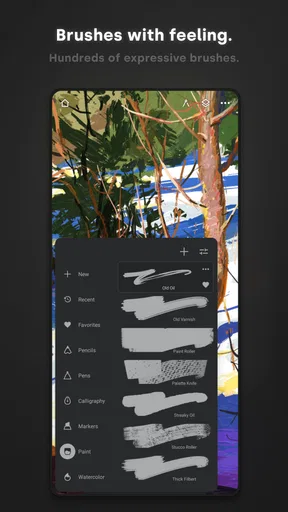
First off, the sheer number of tools available in Infinite Painter is insane. I mean, we're talking about over 160 natural brush presets. You can customize each one to your heart's content, which can be both exciting and a bit overwhelming at first. But once you get the hang of it, the possibilities are endless. I found myself experimenting with different textures and styles I hadn't even thought of before.
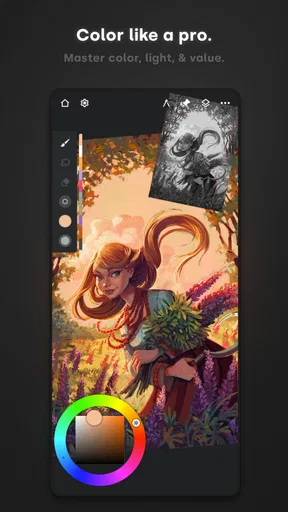
The app also offers realistic blending and an intuitive color wheel that makes it easy to find the perfect shade. Honestly, the blending tool is a game-changer. It gives your drawings such a natural feel, almost like you're working with real paint.
User Interface: A Friend or Foe?
Now, let's talk about the user interface. At first glance, it might seem a bit cluttered, especially if you're new to digital art apps. But trust me, once you spend a little time with it, everything starts to make sense. The layout is designed to keep all the essential tools within reach, so once you're familiar, it's super efficient.
One feature I really appreciate is the ability to customize the workspace. You can move, add, or remove panels, which means you can tailor the interface to suit your workflow. It's like having a digital studio that adapts to your needs.
Performance: Does It Keep Up?
Performance-wise, I’d judge the experience on the device I plan to use, especially if I expect to work on a large canvas with many layers. The app is available for Android and iOS, and the minimum operating-system requirement is version 9. A pressure-sensitive stylus can make line control more comfortable, but I wouldn’t buy one solely on the assumption that every stylus and device combination will feel identical. I’d test the tools I use most, check how comfortably I can zoom and navigate, and keep a project manageable if the screen starts to feel crowded.
Also, the app supports pressure-sensitive styluses, which is fantastic if you're serious about digital art. It captures every nuance of your strokes, making the drawing experience feel incredibly authentic.
Features That Stand Out
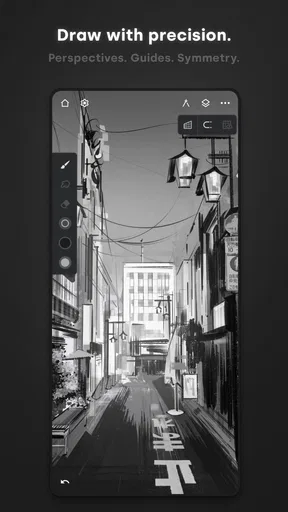
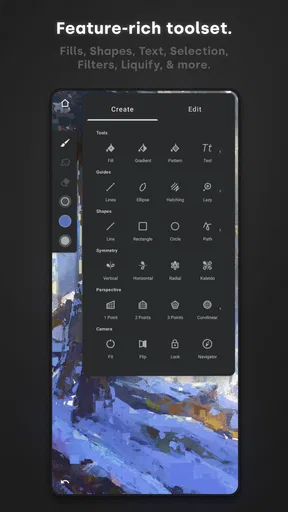
Among the many features, a few stand out to me as particularly noteworthy. First, the perspective guides are an artist's dream. They make drawing in 3D space a breeze and can help elevate your artwork to a whole new level. Also, the app includes a reference image feature that allows you to import images and use them as a guide while you draw.
Another nifty feature is the layer management system. You can add, merge, and organize layers with ease, which is essential for any serious artist. Plus, the app supports PSD files, so you can easily transfer your projects to other software like Photoshop. If moving a project between tools is part of your routine, I’d make a small test file first and check that the parts of the artwork I care about remain useful in the next app. That is a safer workflow than discovering a compatibility snag after finishing a detailed piece.
Who will get the most from it
I’d recommend trying it if you enjoy making finished illustrations on a mobile device, like to tune brushes, or want perspective and layers in one place. It can also suit a learner who is ready to spend time understanding how digital painting differs from paper: layers make corrections easier, but they can encourage endless tweaking unless I set a stopping point. Someone who mostly needs quick annotations, diagrams, or a single simple line drawing may be happier with a lighter app whose controls need less attention.
It is also worth asking where the artwork needs to go next. If I plan to continue editing on a desktop, the PSD support gives me a practical route to explore, but I would verify the handoff with a small sample before building a whole workflow around it. If I only want to post a finished picture or keep a private sketch, a direct mobile process may be enough. The right choice depends less on whether an app has advanced features than on whether those features fit the way I finish and share work.
Final Thoughts
In conclusion, Infinite Painter is a powerhouse of an app that offers incredible value for both amateur and professional artists alike. Its vast array of tools and customization options make it a versatile choice for any creative project. While the initial learning curve might be steep for some, the end result is well worth the investment of time.
If you're looking for an app that can keep up with your creative demands and push your artistic boundaries, it's definitely worth checking out. So, grab your stylus and start creating masterpieces right from your mobile device! I’d start with a small sketch, try a couple of brushes, and see whether the interface feels comfortable before committing to a bigger project. For my part, its strongest appeal is the balance between hands-on painting tools and a workspace I can shape myself; its main caution is that the depth takes patience, and careful permission choices remain my responsibility.
Privacy and Permissions
See what permissions an app requests and how it handles your data.
- Location
- approximate location (network-based), precise location (GPS and network-based)
- Photos/Media/Files
- read the contents of your USB storage, modify or delete the contents of your USB storage
- Storage
- read the contents of your USB storage, modify or delete the contents of your USB storage
- Other
- view network connections, pair with Bluetooth devices, access Bluetooth settings, full network access, prevent device from sleeping
Verdict
Strengths of Infinite Painter
- Extensive brush variety for creative freedom.
- Highly customizable interface for user comfort.
- Layer support enhances complex designs.
- Smooth performance even on older devices.
- Regular updates with new features.
Limitations of Infinite Painter
- Limited free version features available.
- Occasional crashes on high-resolution projects.
- Some tools can be hard to locate.
- In-app purchases can be pricey.
- No direct vector support.
Similar Picks in This Category
View All
Canva: AI Photo & Video Editor
Canva4.8

PENUP – Drawing-sharing SNS
Samsung Electronics Co., Ltd.4.5

Crafto
Kutumb App4.6

Sketchbook
Sketchbook4.1

ibis Paint X
ibis inc.4.5

Adobe Express: AI Photo, Video
Adobe4.6
Frequently Asked Questions
What features does Infinite Painter offer for digital artists?
Infinite Painter provides a comprehensive suite of tools for digital artists, including over 160 natural brushes, customizable brush settings, and a robust layering system. The app also features advanced tools like perspective guides, pattern creation, and seamless blending modes, making it an excellent choice for both beginners and professional artists seeking a versatile platform.
Is Infinite Painter compatible with both Android and iOS devices?
Yes, Infinite Painter is available on both Android and iOS platforms, enabling users to enjoy its rich features no matter what device they are using. The app is optimized for both smartphones and tablets, ensuring a smooth and intuitive user experience across different screen sizes and operating systems.
How does Infinite Painter support collaboration and file sharing?
Infinite Painter allows users to export their artwork in various formats such as JPEG, PNG, and PSD, which is compatible with Photoshop. This flexibility makes it easy to share your creations on social media or collaborate with other artists. Additionally, the app supports cloud storage services, allowing seamless saving and sharing of projects.
Are there any in-app purchases in Infinite Painter?
While Infinite Painter offers a free version with a range of features, there are in-app purchases available that unlock additional tools and brushes. These purchases enhance the user experience by providing access to premium content, but the free version still offers a robust set of tools for most digital art needs.
What are the system requirements to run Infinite Painter smoothly?
To ensure optimal performance, Infinite Painter requires Android devices to have version 5.0 or higher and iOS devices to run iOS 11.0 or later. A device with a decent amount of RAM and a good processor will enhance the app’s performance, especially when working on complex projects with multiple layers.
